
These are public examples of AI ads from creators on X. They were not made on or for Anglr. Click any ad to see the original post.
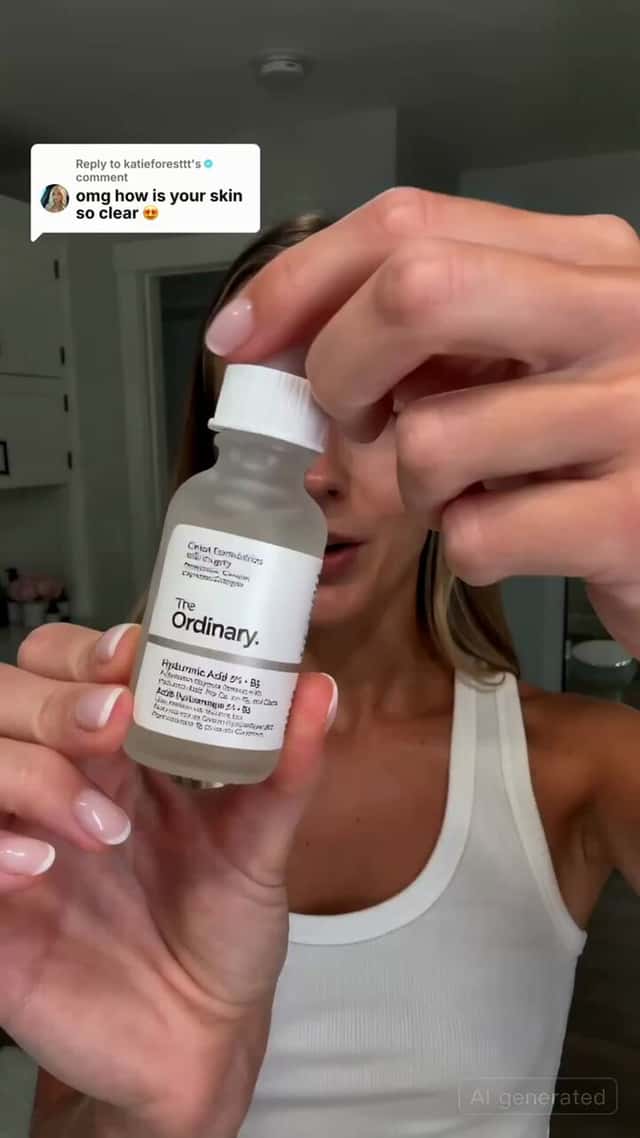 AIOpen the ad by @davidfigeiraReaction / green screen
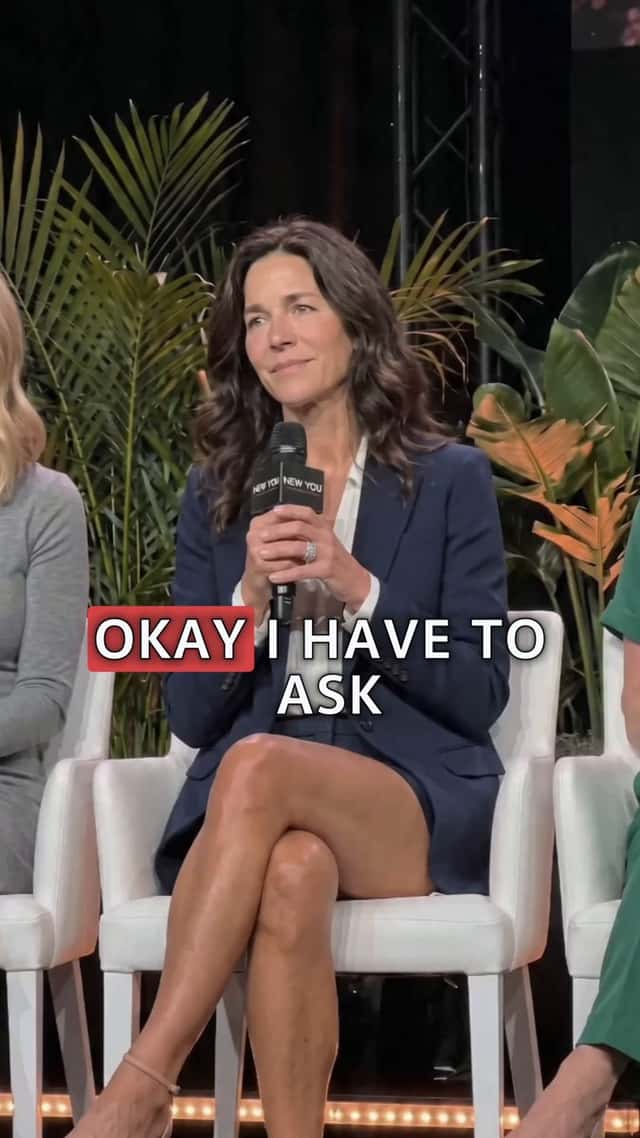 AIOpen the ad by @prompt_papiReaction / green screen
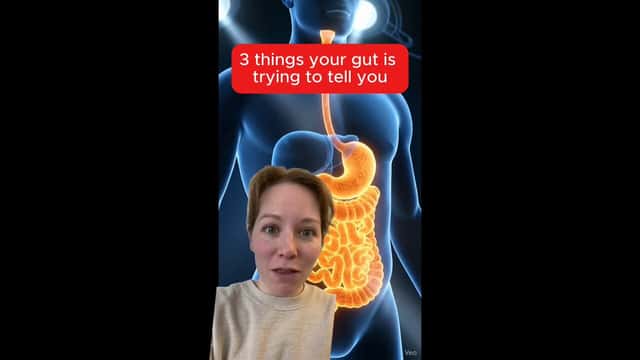 AIOpen the ad by @recap_davidReaction / green screen
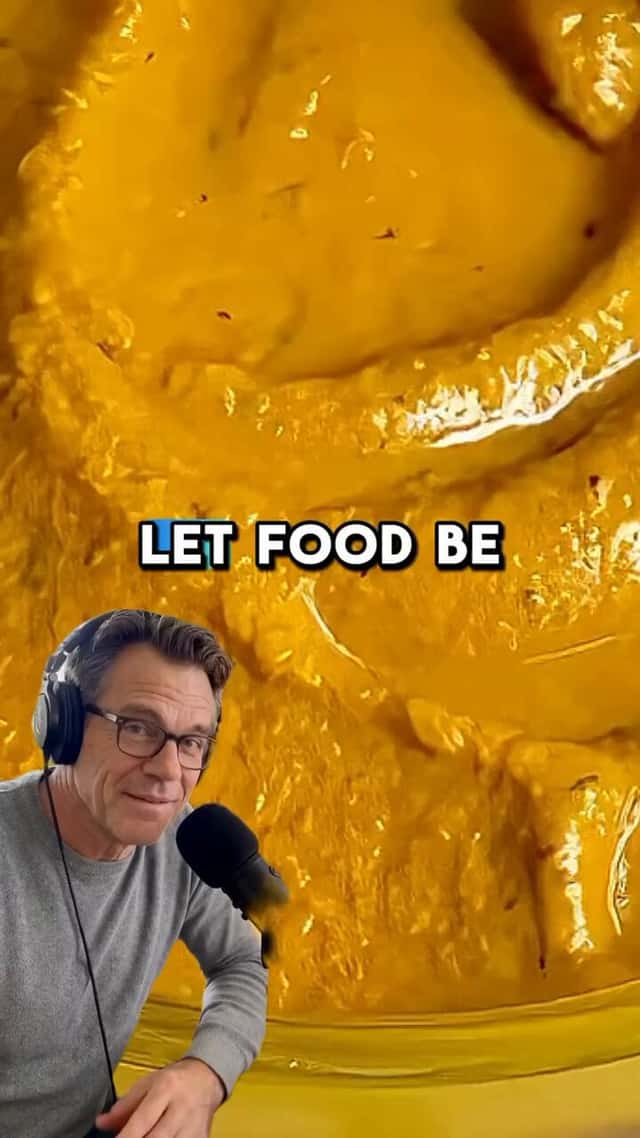 AIOpen the ad by @davidfigeiraReaction / green screen
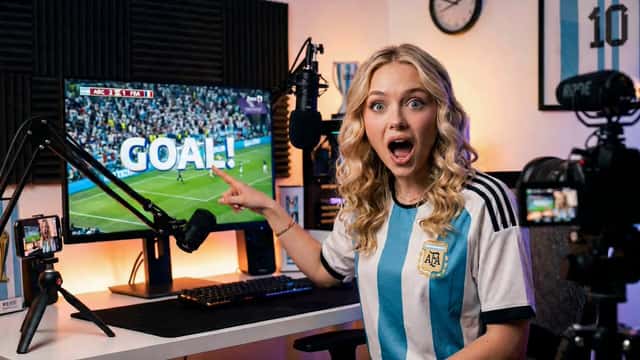 AIOpen the ad by @Just_sharon7Reaction / green screen
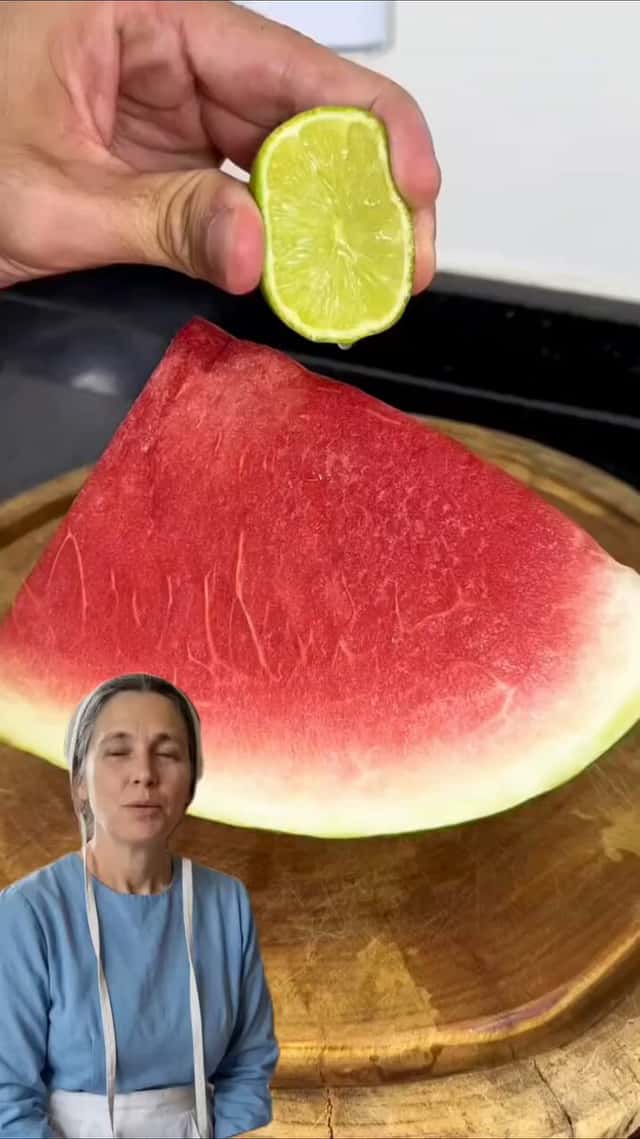 AIOpen the ad by @laurgrowthReaction / green screen
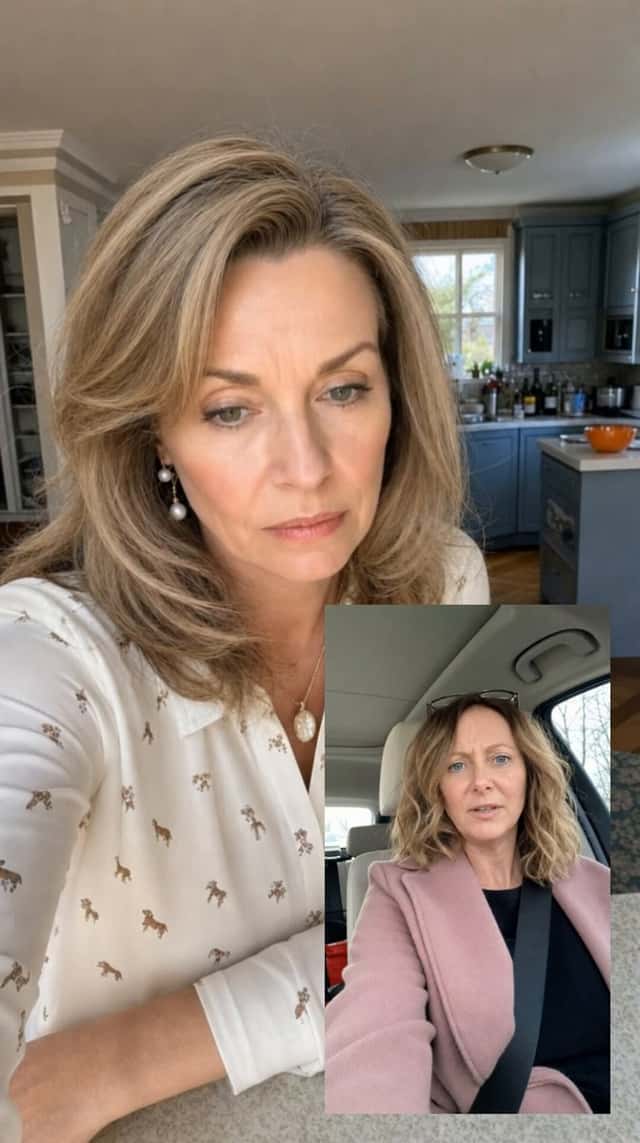 AIOpen the ad by @ladprofitReaction / green screen
 AIOpen the ad by @themariainesReaction / green screen
What a green screen ad looks like
The presenter sits in front of what they are talking about. In the examples here the background is a body diagram, a football match on a screen, or a food close-up, often with the presenter's face as a small picture-in-picture in a corner and a headline across the top.
The examples mix vertical and landscape frames. The background takes most of the screen; the presenter is a cut-out in the lower part or a corner.
Background types
| Background | What the presenter does | Best for |
|---|---|---|
| Diagram or illustration | Points to parts and explains | Products with a mechanism or a process |
| Product close-up or pack shot | Reads the label, points to features | Ingredient or spec-led scripts |
| A clip the presenter reacts to | Watches, then responds | Hooks built on surprise or disagreement |
| Text or a list | Talks through each line | Myth-busting and "three things" scripts |
Why brands use the reaction format
The background gives the viewer something to look at while the presenter talks, so an explanation that would be a static talking head becomes a visual walkthrough.
It is quick to version. One presenter performance can sit over several different backgrounds to test which visual holds attention.
Screen layout and order
- Headline text at the top states the hook as a question or a claim the brand can support.
- The background appears first, full-frame, for a moment before the presenter speaks.
- The presenter comes in as a cut-out or corner face and reacts to the background.
- The background changes as the script moves on: problem visual, then product visual.
- The presenter points to the product and the offer, with the background on the pack shot.
- End card with the brand and product name.
Keep the presenter clear of the area where platform buttons and captions sit, which is usually the right edge and the bottom of the screen.
Script notes
Write lines that refer to what is on screen: "look at this part", "see the label here". If a line would make sense without the background, it belongs in a talking-head ad instead.
Leave short gaps in the script where the presenter only reacts. A silent reaction shot makes the cut easier and gives the viewer time to read the background.
Frame and length
Build the master in 9:16 for TikTok, Reels and Shorts. If you also need 16:9, build the background separately for each ratio rather than cropping, because the presenter's position changes.
Reaction hooks are short by nature. Keep a tight version that ends on the product, and a longer version that walks through more of the background.
Make it with AI
- Generate the presenter on a plain, evenly lit backdrop with the same camera angle you want in the final frame.
- Animate the presenter and lip-sync the voiceover to their shots.
- Generate or design the backgrounds separately: diagrams as stills, product close-ups as stills or short image-to-video clips.
- Key out the presenter's backdrop in the editor and layer them over each background, then add the headline and captions.
Tool notes: Higgsfield for UGC ads and HeyGen for ads.
Compliance checks
- No fake news screenshots, fake reviews or fake comments as backgrounds.
- No real people's footage, sports broadcasts or TV clips without the rights to use them.
- Diagrams of the body must not show claims the brand cannot support.
- Follow the AI labelling rules for each platform: AI ad labels on Meta and TikTok.
The green screen version of a winning script
This format keeps the script's words and adds a visual for each line. Take the tested script, list one background per beat, and record the presenter once. The ad hooks guide helps pick a headline for the top of the frame, and one winning script made in every format shows where this version sits next to the others.
Who this is for
- Independent AI creators and editors. You make the ads yourself. You know your work performs, so you'd rather be paid on what it does than on a flat fee.
- AI agencies and studios. You run a team of editors. You write the brief, your team makes the versions, and you're paid on performance because you know your team's ads scale.
Not for you if
- You only want a flat fee.
- You're new to editing and not yet confident your ads will perform.
- You want every shot spelled out for you.
- You make one style and won't try others.
FAQ
What is a green screen ad?
It is a video where a presenter appears in front of a background they are talking about, such as a diagram, a clip or a product photo, like the green screen effect on TikTok. The presenter reacts to or explains what is behind them.
Do I need a real green screen to make one with AI?
No. Generate the presenter on a plain background, cut them out in your editor, and place them over the background image or clip.
What should go behind the presenter?
Something the viewer wants to look at and that the script can explain: a diagram of the problem, a close-up of the product, or a clip the presenter is reacting to.
Can I use news headlines or other people's videos as the background?
Do not use real news, real headlines or other people's footage without permission, and do not create fake ones. Use your own graphics, the brand's assets, or AI footage that does not imitate real events.
Is a reaction ad the same as a duet?
They look similar. A duet places two videos side by side; a green screen ad puts the presenter on top of the background, often with a picture-in-picture face in a corner.